
Workplace Privacy
Does a Privacy Filter Hide Screen Sharing? Physical and Digital Exposure Explained

A physical privacy filter does not hide the image sent through screen sharing. Separate local viewing controls from your meeting-software workflow.
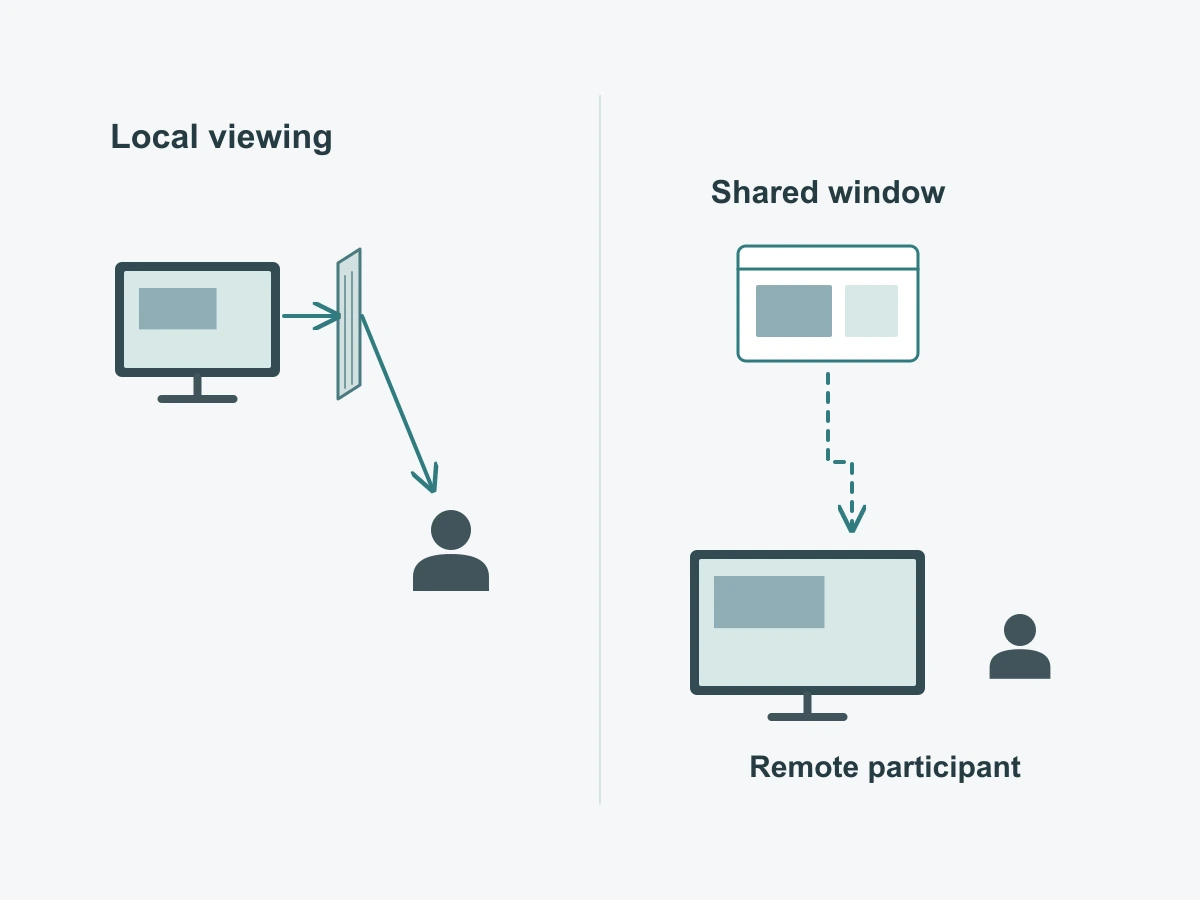
No. A physical privacy filter limits useful viewing of the actual display from some nearby positions; it does not change the window or screen that meeting software sends to remote participants. It also cannot prevent a recipient from taking screenshots, recording received content or photographing a display. Use the filter for local sightlines and the meeting controls for digital sharing.
This distinction matters in a hybrid meeting. Someone beside your laptop and someone joining remotely can receive the information through different paths. Making the local side view harder to read does not remove confidential material from the shared window.
Separate the two viewing paths
A person next to the laptop
A nearby person looks at light from the physical display. A suitable privacy filter can limit useful off-center viewing along its intended directions, while the user reads from the working position. Where people sit, stand or move still matters. Someone looking over your shoulder may have a different view from a colleague seated to the side.
The existing guide to how privacy screen filters work explains that viewing principle and its limits. For a meeting, apply it to the actual room: identify who can see the laptop, which content is open and whether the screen is also being shown on another display.
A filter on your laptop does not cover a room monitor. If you move the presentation to that monitor, assess its local audience separately instead of assuming the laptop accessory controls both displays.
A participant receiving a shared window
In ordinary software screen sharing, the meeting application sends the selected digital content. The remote participant is not looking through the physical filter attached to your laptop. Removing the filter therefore is not a remedy for a remote participant who cannot see the shared document; first check the software’s selected source and sharing status.
Microsoft’s Teams presentation guidance describes selecting an entire screen or a window and using a separate control to stop sharing. That is the relevant distinction: the selected source determines the shared content, not the accessory in front of the display.
A camera pointed at a screen creates another route. Unlike direct software sharing, it captures the physical scene. Keep that route separate when deciding what is visible and who controls it.
| Exposure route | Who controls the situation | What the filter can do | What it cannot do | What the user should check |
|---|---|---|---|---|
| Nearby person viewing the laptop | User and room arrangement: seats, sightlines and screen direction | Limit useful viewing from some off-center positions on the covered display | Make every observer unable to read the screen or cover other displays | Side and over-shoulder positions, the actual content and any additional display |
| Remote participant receiving a shared window or screen | Presenter, meeting software and the organization’s meeting settings | Continue serving the laptop’s local viewing requirement | Hide, redact or select the digital content sent to participants; prevent recipient capture | Selected screen or window, intended audience, active sharing status and existing meeting controls |
| Camera photographing or filming a display | Person handling the camera and the workflow governing visible content | Potentially change what a camera sees from certain side positions, as with other optical viewing | Prevent photography or recording, particularly from a position where the display remains readable | Whether sensitive content is visible to a camera, including another screen in the meeting space |
Review the meeting workflow
Check what the software is sharing
Prepare the intended presentation before starting the share. If the audience only needs one document, use an appropriate window-level sharing option rather than an entire desktop when your setup supports it. A narrower source reduces what you deliberately expose, but it is not permission to put unrelated confidential content inside that window.
Work through the actual transition:
- Open the material intended for these participants and close unrelated documents or browser tabs in the presentation window.
- Choose the source by its content, not just by a familiar application icon. With multiple displays, confirm which screen you selected.
- Check the application’s sharing indication and available shared-content view before proceeding.
- Before opening a different document or account, stop sharing, prepare the next source and select it deliberately.
Watch for changes within the shared application. A browser window that initially shows a public presentation may later show another tab, a search suggestion or an account page. Selecting a window does not turn everything subsequently displayed there into suitable meeting content.
Use existing company meeting controls
Use your organization’s approved meeting setup and rules for attendees, presenting and recording. If you are unsure which controls apply to an external meeting, ask the organizer or IT contact before displaying sensitive material. Buying a filter does not change those software permissions.
Check notification content as part of presentation preparation. Do not assume every type of alert is hidden in every sharing mode or application. Close unnecessary messaging windows and use the notification arrangement approved for your work, then verify the presentation with non-sensitive content.
Keep camera and screen-sharing controls distinct. Switching off your video camera is not the same action as stopping a shared window. When the presentation is over, use the sharing control and confirm that sharing has ended before returning to private work.
Decide whether removable privacy helps
Local collaboration versus remote presentation
A removable filter can be useful when a colleague physically beside you needs to read the same display. Prepare suitable shared material first, then use the removal routine for the supplied configuration. Once that local discussion ends, return to the intended private-work arrangement before reopening sensitive content.
For a remote-only presentation, local privacy can still be useful. You do not need to remove a filter merely to make the digitally shared window visible to remote participants. Assess the nearby room and the remote sharing source independently.
ScreenWord’s universal laptop magnetic privacy screen is a removable product route for this local switching routine. Device-edge suitability remains part of selecting the configuration. The broader laptop privacy screen families help a buyer identify the device series before choosing an attachment.
If a role rarely shares the physical display, frequent removal may not be central to its needs. Describe the actual routine to the supplier rather than treating “video meetings” as an automatic reason to choose one installation method.
Do not claim protection from screenshots
A physical filter is not a screenshot or recording control. Once digital content is delivered to a participant, the filter on the presenter’s laptop is not in the recipient’s viewing or capture path. Whatever meeting restrictions your organization uses, do not attribute them to the filter.
The same caution applies to cameras. A camera may capture a physical display from a position where the content is readable, including a display at the remote end. If material should not be captured or seen by that audience, the practical decision is whether and how to present it at all.
Write a staff briefing
One clear physical-versus-digital boundary
Give staff a short instruction they can use at the moment of sharing:
The filter helps with nearby viewing of this laptop. Before presenting, choose the intended screen or window and check the audience. Before opening private work, stop sharing. Before showing a colleague the physical display, prepare suitable content and use the supplied filter routine.
Practice that distinction with an ordinary, non-sensitive document. Have the presenter identify the shared source and the person seated beside the laptop, then explain which control applies to each. This teaches the decision without staging a privacy test or asking staff to expose real customer information.
For procurement, describe the device, the nearby workspace, the frequency of side-by-side collaboration and the quantity required. Treat screen-sharing permissions as an IT question and fit or removal as a product question.
Request a configuration review with those details and any open attachment question. Paste the summary into the form; send supporting device photos or files separately through the WhatsApp, Telegram or WeChat options provided on the site.