Dell Latitude 5420: a starting option
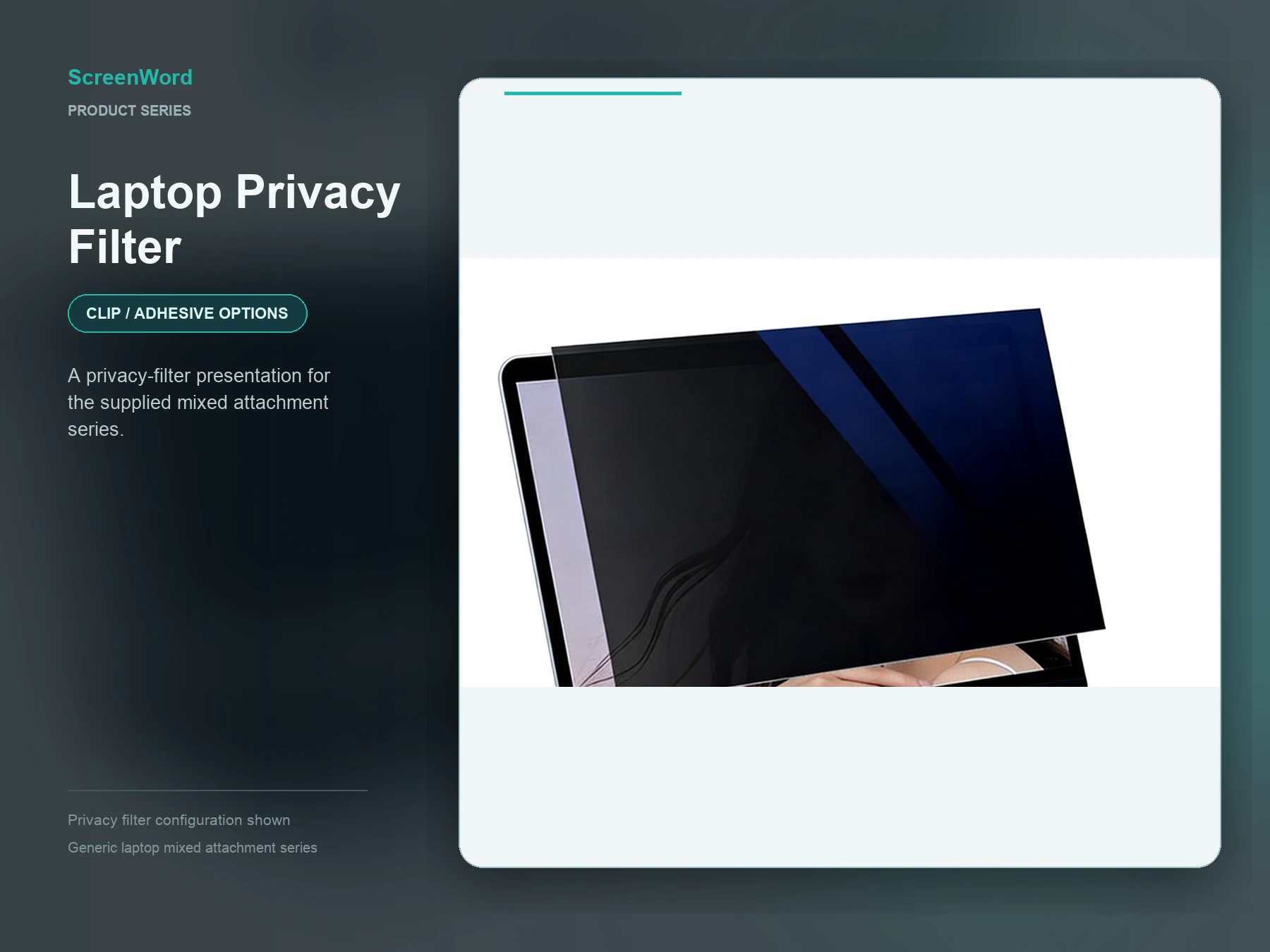
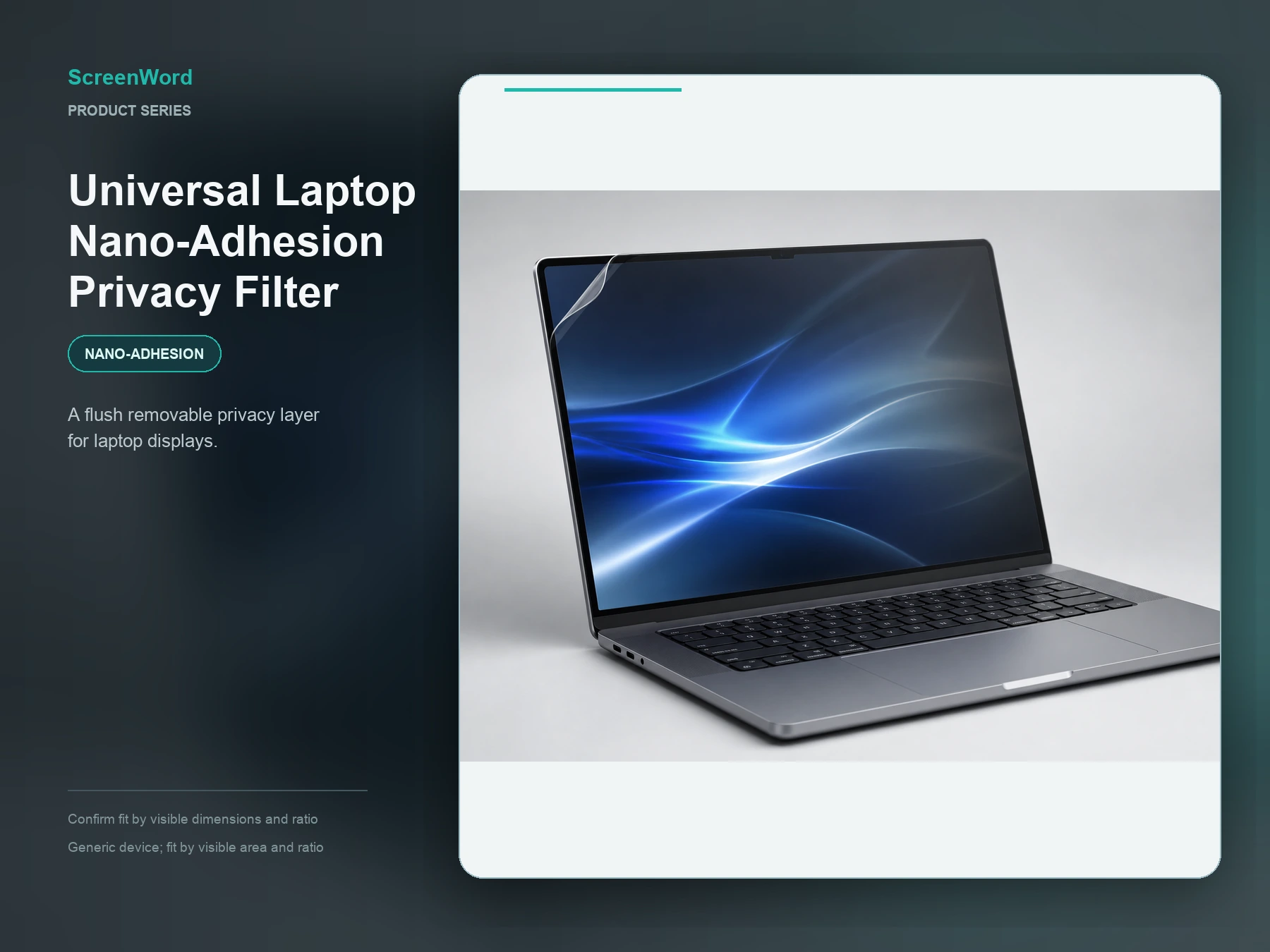
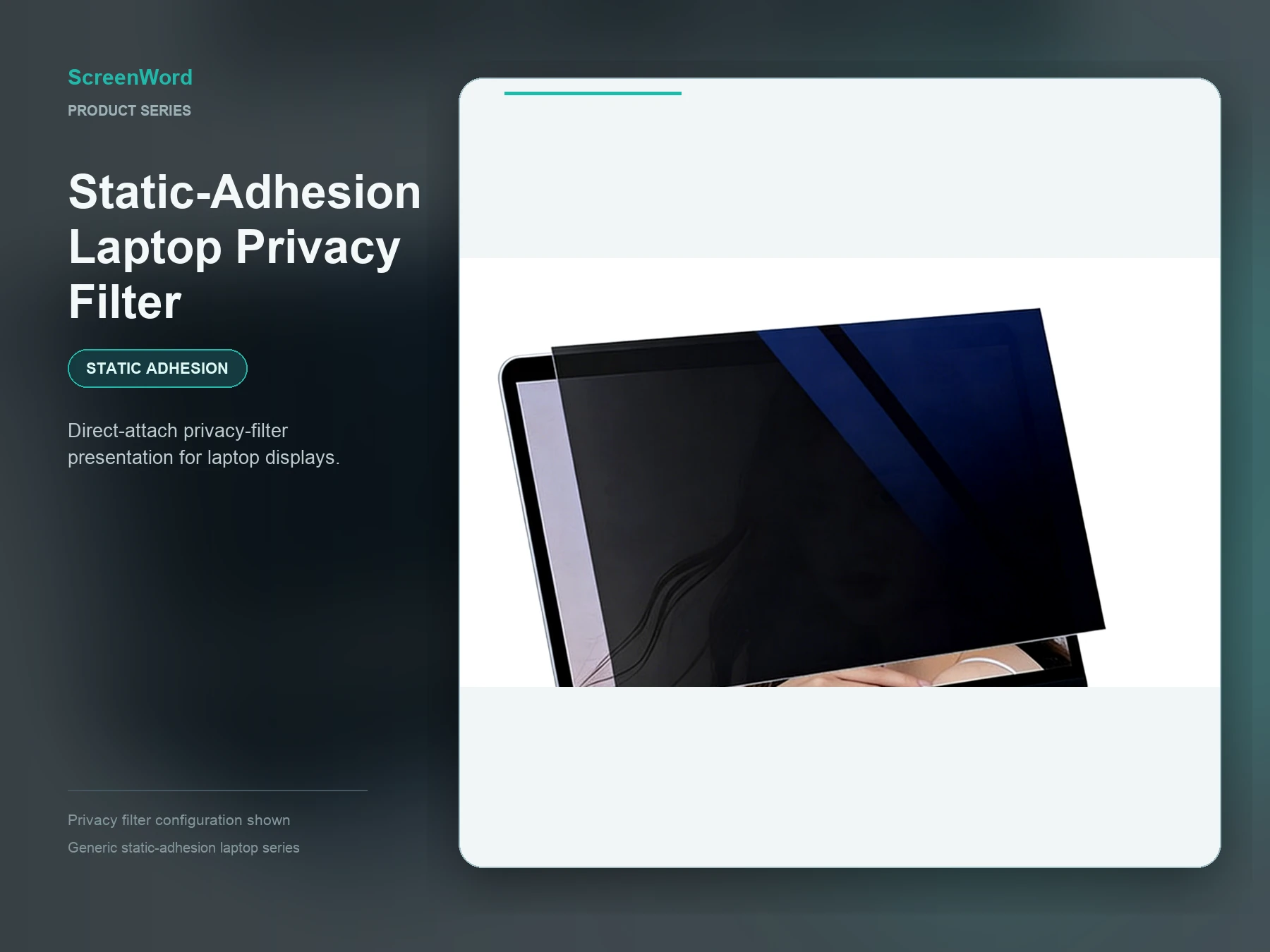
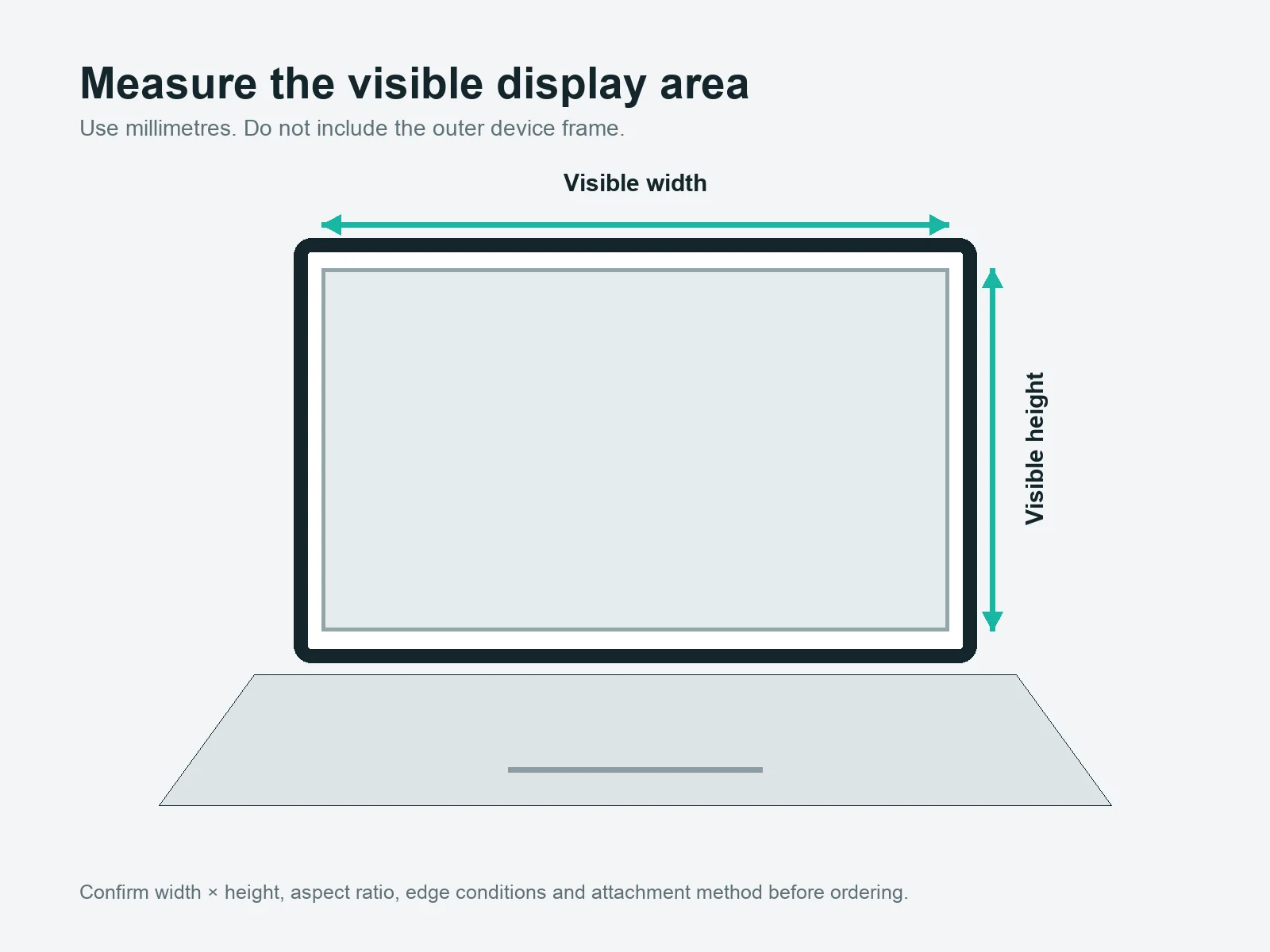
For a Dell Latitude 5420, start with the universal laptop nano direct-attach privacy filter in the 14-inch, 16:9 range. Dell lists five display configurations with the same visible display area—309.4 × 173.95 mm—but both touch and non-touch versions. ScreenWord's 310 × 175 mm catalog size is a selection starting point, not a confirmed filter outline or exact fit. Before ordering, check the device's actual visible width and height, whether it has touch, and the intended edge coverage and attachment area. For a touch version, include the touch tasks users need to perform. Request a quote for your Latitude 5420 group with the display version and quantity.
HP EliteBook 840 G8: check the display option
For a standard 14-inch FHD EliteBook 840 G8 without the built-in Sure View display, start with the universal laptop nano direct-attach privacy filter. The 310 × 175 mm catalog row is a size-selection starting point, not a measured visible area or confirmed filter outline for this HP model. Check the device's visible width and height, screen surface, edge coverage and camera clearance. If it is the touch version, also check everyday touch and edge gestures with the intended attachment. If the device has HP Sure View Reflect, first decide whether an additional external filter is needed and for what use; do not assume it should be layered over the built-in privacy display. Request a quote for your EliteBook 840 G8 group with the display option and quantity.
Dell Latitude 7420: separate laptop and 2-in-1 use
For a Latitude 7420 laptop with a standard non-touch FHD or UHD display, start with the universal laptop nano direct-attach privacy filter. Dell lists a 309.40 × 173.95 mm active display area across its listed options; ScreenWord's 310 × 175 mm catalog row is only a size-selection starting point. For a touch laptop, also check touch and edge gestures after attachment. If it is the SafeScreen option, first confirm whether an additional external filter is needed. Treat the Latitude 7420 2-in-1 as a separate group: its touch surface, optional pen use, folded or tablet positions, edge coverage and closed-lid clearance need their own installation check. Request a quote for your Latitude 7420 groups with each version, visible measurements, touch or pen needs and quantity.
HP EliteBook 840 G6: check the display configuration
For a non-touch HP EliteBook 840 G6, start with the universal laptop nano direct-attach privacy filter. This is a 14-inch, 16:9 laptop; ScreenWord's 310 × 175 mm catalog row is a size-selection starting point, not a confirmed filter outline for this model. If your configuration has touch, the same product is a candidate, but check its display surface, required touch and edge gestures, and closed-lid clearance with the intended attachment. If it has the built-in HP Sure View privacy display, first decide whether an additional external filter serves a separate need. Request a quote for your EliteBook 840 G6 group with the exact display version, visible measurements, attachment needs and quantity.
Dell Latitude 5520: separate touch and non-touch displays
For a non-touch Dell Latitude 5520, start with the universal laptop nano direct-attach privacy filter. Its 15.6-inch, 16:9 display has an official active area of 344.16 × 193.59 mm. ScreenWord's 345 × 194 mm catalog row is a size-selection starting point, not a confirmed filter outline or exact fit. The touch display is a separate version that can start with the same product; check its anti-glare surface, planned coverage, touch and edge gestures, and closed-lid clearance before ordering. Request a quote for your Latitude 5520 group with the display version, visible dimensions, attachment requirements and quantity.
HP EliteBook 830 G6, G7 and G8: choose by display version
For an HP EliteBook 830 G6, G7 or G8 with an ordinary non-touch display, start with the universal laptop nano direct-attach privacy filter. All three have 13.3-inch, 16:9 display options. ScreenWord's 294 × 165 mm catalog row is a size-selection starting point, not an HP-measured visible area, a finished filter size or confirmed fit. Match the actual visible dimensions, intended coverage and screen-contact area before ordering.
| Exact model | Ordinary and touch display selection | Built-in privacy display and key conditions |
|---|
| HP EliteBook 830 G6 | Ordinary non-touch: start with the nano option above. Touch: identify the exact display version and whether it has built-in privacy before choosing an external filter. | Some configurations have a built-in privacy display. If yours does, first decide what an additional physical filter needs to do; keep its camera and edge conditions separate from ordinary-screen selection. |
|---|
| HP EliteBook 830 G7 | Ordinary non-touch: start with the nano option above. For an ordinary touch display, nano is also a starting option; account for required touch and edge gestures. | If yours has Sure View Reflect, first decide whether an additional physical filter is needed. Check the actual top-edge and opening arrangement for that display version. |
|---|
| HP EliteBook 830 G8 | Ordinary non-touch: start with the nano option above. For an ordinary touch display, nano is also a starting option; account for required touch and edge gestures. | If yours has Sure View, first decide whether an additional physical filter is needed. Check the actual top-edge and opening arrangement for that display version. |
|---|
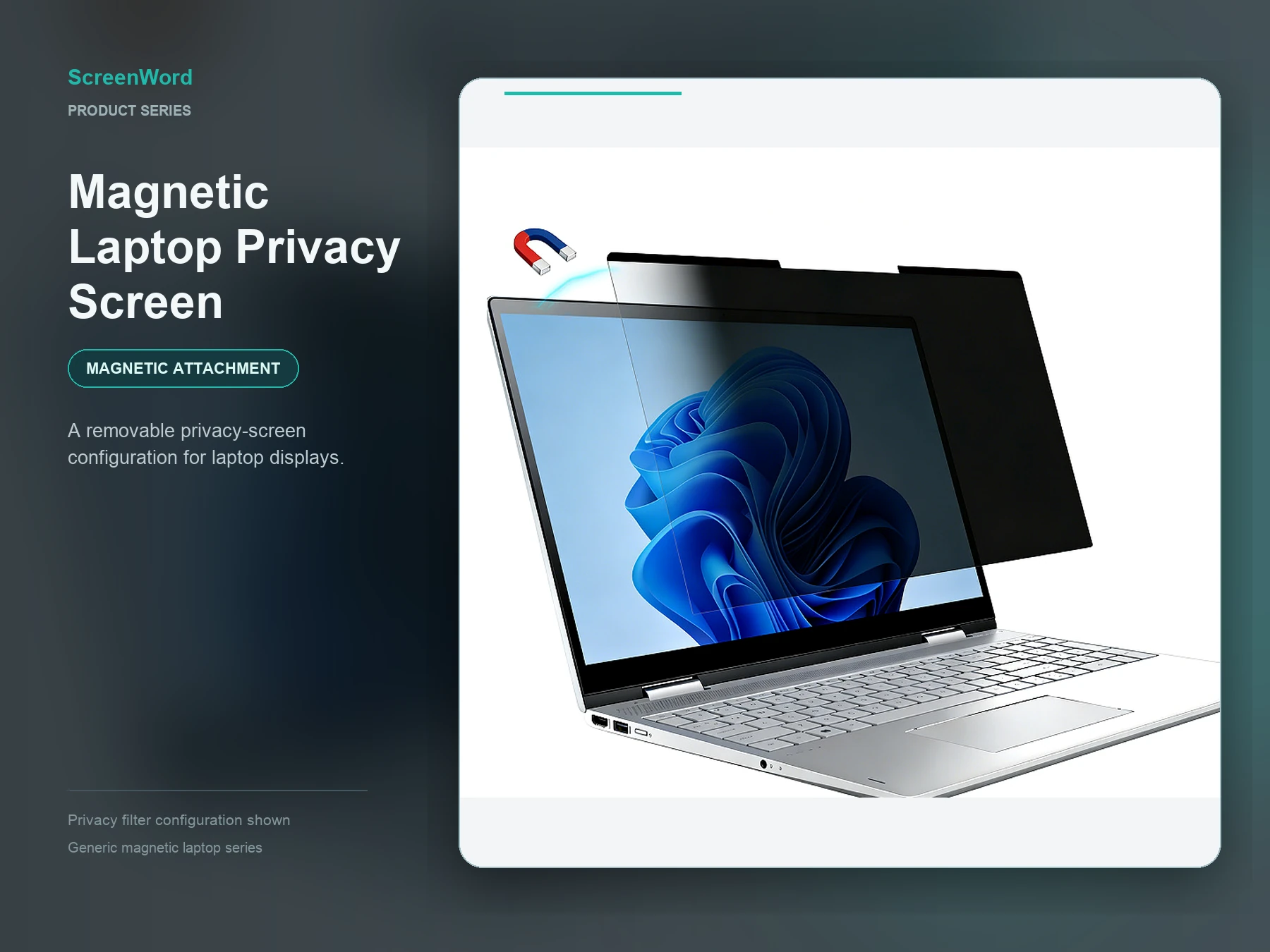
For an ordinary non-touch configuration where easy top-edge removal matters, the universal magnetic laptop privacy screen is a second option to discuss. Its top contact area and attachment method must suit the device; do not infer magnetic attachment from the laptop body. For either route, allow for the camera, IR components, sensors or shutter where present. If the required outline or openings fall outside the available size path, discuss a custom filter. Check closed-lid clearance only if you plan to close the laptop with the filter attached.
Request a quote for your EliteBook 830 groups with the exact generation and display version, quantity, visible width and height, and any touch or attachment requirements.
Dell Latitude 5490, 7300 and 7390: start with the display version
For an ordinary non-touch Latitude 5490, 7300 or 7390 notebook, start with the universal laptop nano direct-attach privacy filter. Touch versions need their own surface and input checks. The Latitude 7300 SafeScreen option and Latitude 7390 2-in-1 follow separate paths. Catalog dimensions below are starting references, not finished filter outlines or confirmed fits.
| Model and display version | Starting product and size path | Conditions that affect selection |
|---|
| Dell Latitude 5490 — 14-inch, 16:9; ordinary non-touch HD/FHD or Truelife touch | Start with the nano direct-attach filter and the 310 × 175 mm catalog size for review. | Check actual visible width, height and planned coverage. The non-touch anti-glare and Truelife touch surfaces need separate contact checks; for touch, include required touch and edge actions. |
|---|
| Dell Latitude 7300 — 13.3-inch, 16:9; ordinary non-touch, ordinary touch or SafeScreen | For an ordinary display, start with the nano direct-attach filter and review the 294 × 165 mm catalog size. For SafeScreen, first decide why an additional external filter is needed before selecting one. | Dell lists a 293.76 × 165.24 mm active display area; the catalog height is smaller, so confirm intended coverage. Check touch tasks where relevant and leave room for the actual front-edge controls and openings. |
|---|
| Dell Latitude 7390 notebook — 13.3-inch, 16:9; non-touch or on-cell touch | Start with the nano direct-attach filter and review the 294 × 165 mm catalog size against the notebook's 293.47 × 165.08 mm active display area. | Identify the actual narrow-border and camera version. HD and IR openings are not interchangeable; for touch, check screen contact and the required touch and edge actions. |
|---|
| Dell Latitude 7390 2-in-1 — 13.3-inch, 16:9 glass touch display | Use the nano direct-attach filter as a conditional starting path with the 294 × 165 mm catalog size. Do not use the regular 7390 notebook's active-area measurements as this model's dimensions. | Check the glass surface and intended coverage. Include pen input and folded or tablet positions only if your team uses them, along with the touch and edge actions it needs. |
|---|
For an ordinary non-touch notebook where convenient top-edge removal matters, the universal magnetic laptop privacy screen is a second path to discuss if the top contact area and attachment method suit the device. Do not infer magnetic attachment from the laptop casing. Keep the actual camera, IR and microphone areas clear, and check closed-lid clearance only if that use is required. If the needed outline or openings do not match an available size path, discuss a custom privacy filter.
Request a quote for your Latitude groups with each exact model and display version, quantity, visible width and height, intended coverage, and relevant touch or attachment needs.
HP EliteBook 840 G3, G5 and G7: choose a privacy filter by display version
For the ordinary non-touch EliteBook 840 G3 and G7 configurations below, start by assessing the universal magnetic laptop privacy screen. Its top-removable connection reduces reliance on display-face adhesion. For the identified touch configurations, start with the universal laptop nano direct-attach privacy filter, assessing contact with the actual screen surface rather than assuming a suitable magnetic attachment point.
| Model and display configuration | Starting path | Conditions that affect selection |
|---|
| HP EliteBook 840 G3 — ordinary HD, FHD or QHD non-touch | Assess the magnetic privacy screen for top-edge attachment and removal. | Match the connection to the usable top contact area and the actual webcam arrangement, where fitted. Record visible width, height and intended coverage for the specific display. |
|---|
| HP EliteBook 840 G3 — FHD touch | Assess the nano direct-attach filter through its screen-contact area. | Match the actual anti-glare surface and filter contact layer; allow for the webcam and required touch and edge actions. |
|---|
| HP EliteBook 840 G5 — FHD Gorilla Glass 3 touch configuration | Assess the nano direct-attach filter against this glass surface. | Check the contact layer, intended coverage, HD/IR openings and required touch actions. Identify whether the actual device has built-in privacy before choosing an additional filter. |
|---|
| HP EliteBook 840 G7 — ordinary 250-nit FHD non-touch | Assess the magnetic privacy screen for a removable top connection. | Check the narrow top border and actual camera version. A configuration without a camera does not make the entire top edge available for attachment. |
|---|
| HP EliteBook 840 G7 — 400-nit low-power FHD non-touch with ALS | Assess the magnetic privacy screen, with space for the ambient light sensor (ALS). | Keep the ALS, HD/IR camera and any shutter clear. Use this configuration's available connection area rather than borrowing the simpler non-touch version's edge conditions. |
|---|
| HP EliteBook 840 G7 — FHD Touch-on Panel (TOP) | Assess the nano direct-attach filter through its screen-contact area. | Match the actual surface treatment and contact layer, with room for HD/IR openings and any shutter. Include required touch and edge actions; do not assume the G5 glass surface. |
|---|
| HP EliteBook 840 G7 — Sure View Reflect | First decide what an additional physical filter needs to do beyond the built-in privacy display. | If one is needed, discuss that purpose together with the actual camera/ALS arrangement, attachment space and combined viewing requirements before selecting a product. |
|---|
For an EliteBook 840 G3 with Sure View, identify the specific display configuration and the purpose of an extra physical filter separately from the ordinary-screen options. For other EliteBook 840 G5 display versions, identify the screen type and built-in privacy status first; the glass-touch recommendation above does not extend to every G5.
For the ordinary configurations listed above, ScreenWord's 310 × 175 mm catalog size is a starting reference—not an HP-measured visible area, a finished filter outline or an order size. Match actual visible dimensions and intended coverage before finalizing the filter. If the available size or outline cannot meet the requirement, discuss a custom privacy filter.
Magnetic selection depends on the actual top connection and clearance, not the laptop's metal casing. Nano selection depends on the screen surface and contact layer; required touch actions still need checking with the filter attached. Keep cameras, IR components, ALS, microphones and shutters clear where present. Check closed-lid clearance only if you need to close the laptop with the filter attached. These are selection starting points, not tested fits.
Request a quote for your EliteBook 840 G3, G5 or G7 groups with the exact generation and display version, quantity, visible width and height, intended coverage, and relevant touch or attachment needs.
Dell Latitude 5320, 5400, 7320 and 7490: choose a privacy filter by display configuration
Start with the display version and attachment area, not the Latitude model name alone. The routes below help separate ordinary screens, built-in privacy displays and 2-in-1 devices before choosing a ScreenWord filter.
Latitude 5320: separate ordinary screens, Privacy/Touch and 2-in-1
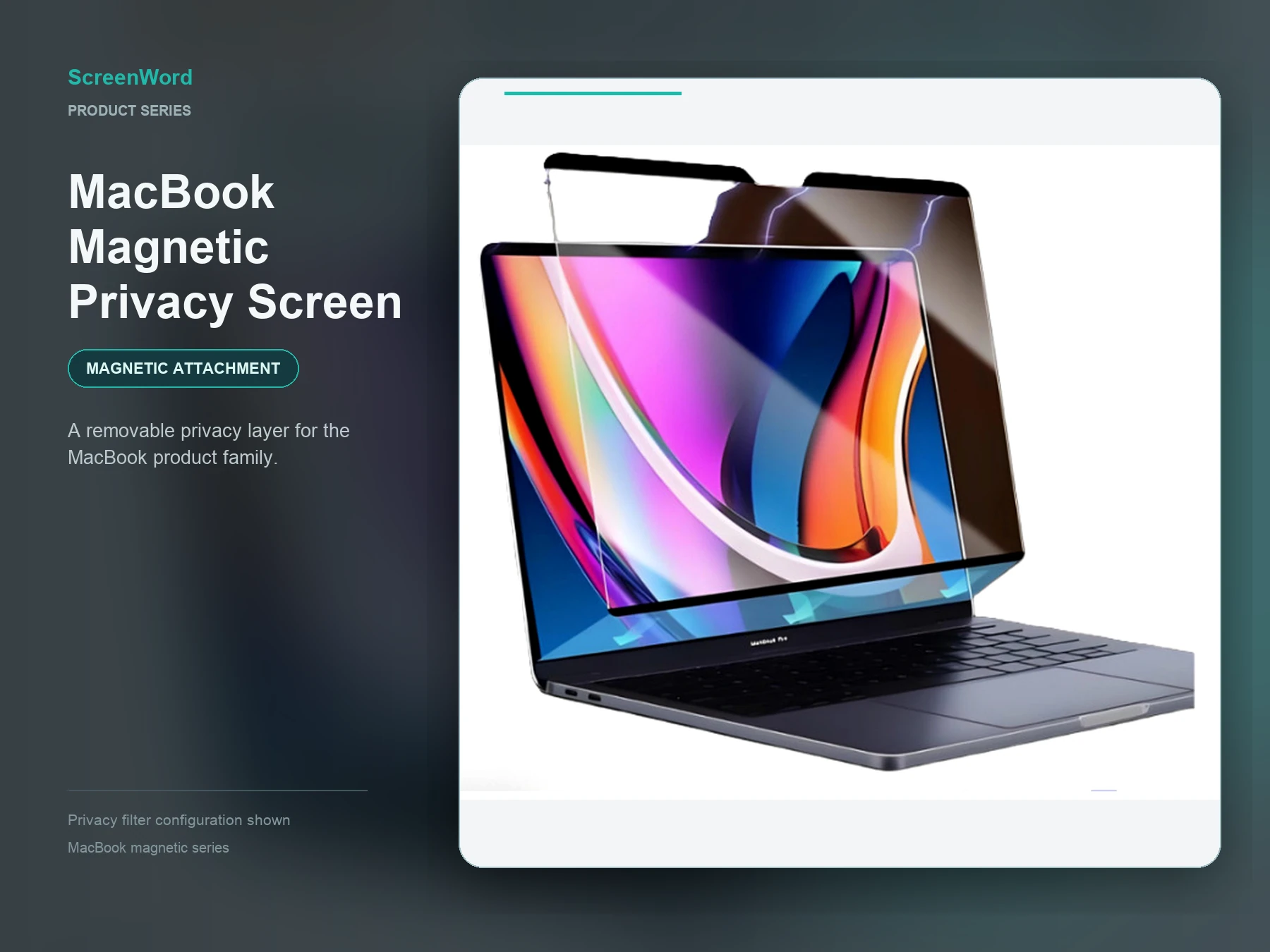
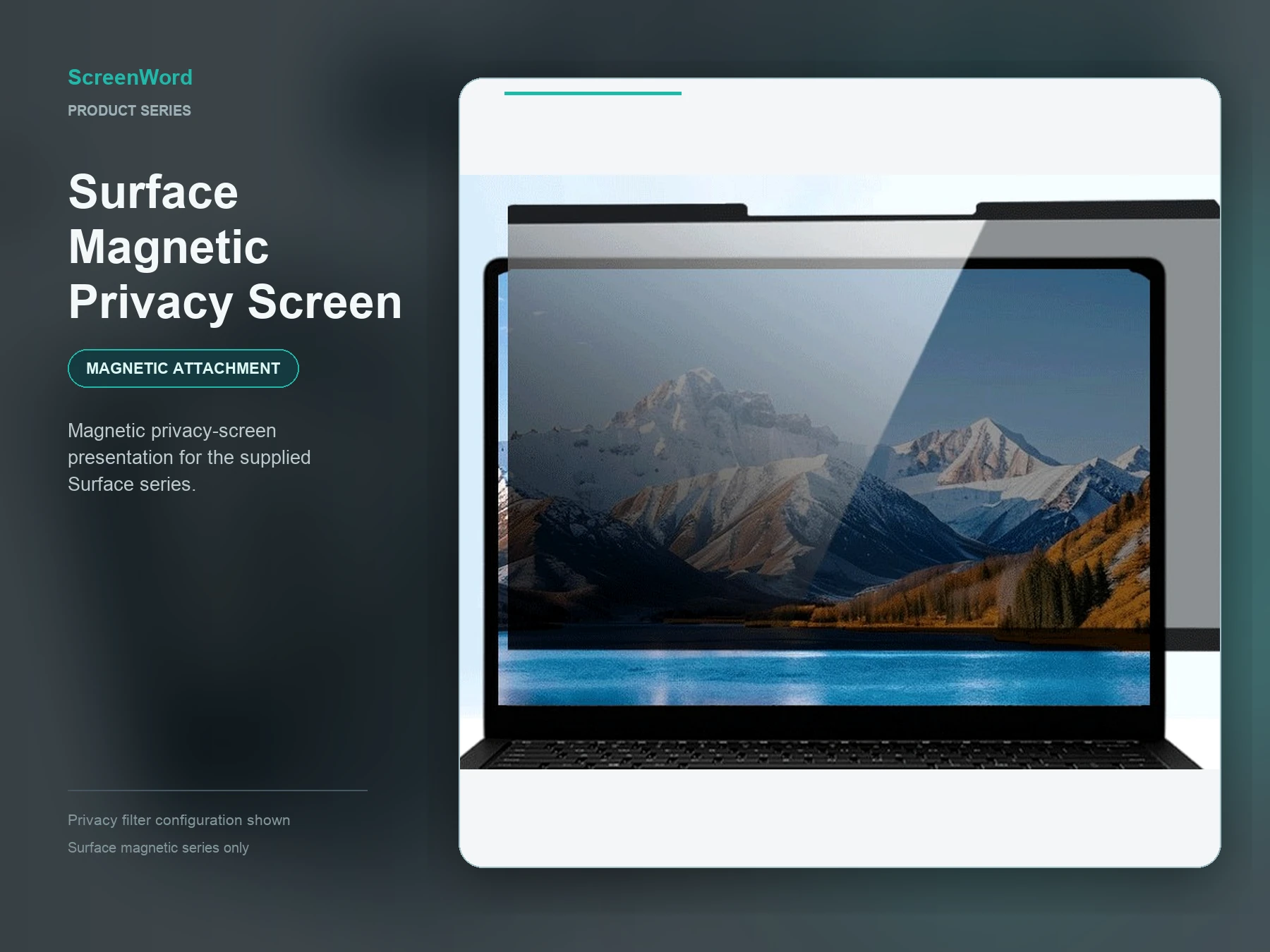
For an ordinary non-touch Latitude 5320, first assess the universal magnetic laptop privacy screen. Its removable top connection reduces reliance on direct attachment to the anti-glare display face. Match the connection and available top contact area to the actual camera, IR, sensor and microphone arrangement.
For an ordinary touch version, start with the universal nano direct-attach privacy filter. Check its contact layer against the anti-glare surface and the touch and edge gestures users need. Treat the 5320 2-in-1 separately: it also starts with the nano route, but Dell specifies an anti-glare surface—not an assumed smooth-glass surface. Include the folded or tablet positions you use, their attachment and operating space, and pen input only if needed.
For Privacy/Touch, first identify what an external filter should add to the built-in privacy display. If there is a separate need, assess the removable magnetic route so the external layer can be taken off. Check the top connection, openings, required touch actions and readability with both layers; adding a filter is not automatically better.
Latitude 5400: distinguish non-touch from Embedded touch
For a Latitude 5400 with an HD or FHD non-touch screen, start with the magnetic privacy screen to assess a removable top connection rather than display-face attachment. The connection must suit the available top area while leaving the microphones, camera and indicator clear where fitted.
For Embedded touch, start with the nano direct-attach filter, matching its contact layer to the anti-glare touch surface and checking required taps, swipes and edge actions. Leave room to operate any SafeView shutter: this is a camera cover, not built-in display privacy. These starting paths concern the Latitude 5400, not the 5400 Chromebook.
Latitude 7320: check the coating as well as the device form
For an ordinary non-touch Latitude 7320, first assess the magnetic privacy screen for top-edge removal with less reliance on attachment to the anti-glare screen face. Confirm the usable connection area and clearances around the actual camera, IR components, sensors and shutter. For an ordinary touch screen, start with the nano direct-attach filter, checking the anti-glare surface, contact layer and required touch and edge actions.
The 7320 2-in-1 also starts with a nano contact assessment, but its Anti-Reflection/Anti-Smudge coating needs its own contact-layer check; do not carry over the ordinary laptop's anti-glare conditions. Include the folded or tablet positions, attachment space and any pen tasks actually required. This guidance does not include the Latitude 7320 Detachable.
For a built-in Privacy touch display, define the extra external-filter purpose first. If needed, assess a removable magnetic layer with the actual top connection, openings, touch tasks and combined readability in mind, rather than assuming two privacy layers improve the result.
Latitude 7490: identify the border and camera configuration
For an ordinary-border, non-touch Latitude 7490, start with the magnetic privacy screen to assess top-edge removal without relying on display-face attachment. For a narrow-border configuration or an ordinary touch screen, start with the nano direct-attach filter through the actual anti-glare contact surface. A narrow border calls for checking screen contact first, rather than assuming enough space for a top connection.
- Ordinary HD/FHD non-touch with HD camera/microphone: match the magnetic connection to the available top area and keep those openings clear. For Mic only, retain microphone clearance and check the connection area separately; it does not make the entire top edge available. Neither route follows from the back-cover material.
- Narrow-border FHD non-touch: assess nano contact and available coverage for the specific HD camera/microphone or IR camera/microphone version. An HD opening arrangement cannot be treated as the IR arrangement.
- Ordinary FHD On-cell Touch: assess nano contact with the anti-glare touch surface, HD camera/microphone clearance and required edge gestures. For narrow-border On-cell Touch, additionally match the reduced border space and the specific HD or IR openings. These touch versions are not 2-in-1 devices.
Size references for these four Latitude models
The 13.3-inch, 16:9 Latitude 5320 and 7320 configurations above have a Dell-listed active area of 293.76 × 165.24 mm. ScreenWord's 294 × 165 mm catalog reference is 0.24 mm wider and 0.24 mm shorter. If the selected finished filter's effective privacy area is actually 294 × 165 mm and full coverage of the 165.24 mm display height is required, do not order that height as-is. Confirm a suitable finished outline and effective coverage, or discuss a custom privacy filter.
The 14-inch, 16:9 Latitude 5400 and 7490 references are 309.4 × 173.95 mm, compared with the 310 × 175 mm catalog size: 0.60 mm wider and 1.05 mm taller. That difference does not establish whether the bezel can accommodate the filter. Dell labels the 7490 dimensions as maximum, with “without metal tabs” qualifying height in some tables; these are specifications, not measurements of every unit.
Device active area, catalog dimensions, finished filter outline and effective privacy area describe different boundaries. Confirm the selected filter's coverage and placement before ordering; the catalog references are not exact-fit dimensions or installation tolerances.
Alternative attachment preferences and your inquiry
For the ordinary non-touch configurations above that start with magnetic attachment, nano is a second route if you prefer screen-face attachment and its contact layer suits the anti-glare surface. For ordinary touch configurations other than the narrow-border 7490, magnetic is a second route when frequent removal matters and the top connection, openings and required touch actions can be accommodated. These alternatives do not extend the ordinary-screen recommendation to built-in Privacy or 2-in-1 configurations.
These are selection routes, not tested fits. Check closed-lid clearance only if you intend to close the laptop with the filter attached.
Request a configuration review for your Latitude groups with each exact model, display version, quantity, needed visible coverage and attachment or touch requirements. For a 7490, identify narrow-border, HD/IR or Mic only where relevant; for a 2-in-1, include the positions and any pen tasks you use. A text summary is enough to start the discussion.
Dell Precision 5540, 5550, 5560 and 5570: choose a privacy filter by display version
Separate your Precision order by display version before choosing an attachment. The 5540 uses a 15.6-inch, 16:9 format; the 5550, 5560 and 5570 use 15.6-inch, 16:10 displays. The same diagonal label does not make their filters interchangeable.
Precision 5540: separate FHD, UHD touch and OLED
For a Precision 5540, start by assessing the universal magnetic laptop privacy screen. Its removable top connection reduces reliance on display-face adhesion, but the connection and contact area must suit the actual display version.
- FHD IGZO4, non-touch, anti-glare: assess the top attachment and effective coverage first. The anti-glare label alone does not establish suitability for screen-face adhesion.
- UHD IGZO4, touch: start with the magnetic route. If direct attachment is preferred, the nano direct-attach privacy filter is an alternative after the actual surface and coating are identified and matched to its contact layer. Include the touch actions users need with either route.
- OLED UHD, non-touch: assess the magnetic route separately, including where the filter or attachment contacts the display. Do not carry LCD adhesion assumptions over to the OLED surface. Confirm OLED-specific dimensions before choosing a finished size.
For the FHD and UHD IGZO4 displays, Dell lists an active area of 345.6 × 194.5 mm. ScreenWord's 345 × 194 mm catalog display-area reference is 0.60 mm narrower and 0.50 mm shorter. Those differences are not an established tolerance. If the finished filter's effective privacy area is also 345 × 194 mm, it will not cover that entire active area; review a suitable finished configuration or a custom privacy filter. These LCD dimensions are not confirmed dimensions for the OLED option.
Precision 5550: choose between direct attachment and frequent removal
For a Precision 5550 with the FHD+ non-touch, anti-glare display, assess the magnetic privacy screen through a custom-size review. The top-removable route reduces reliance on adhesion to the display face. It still needs usable top contact space and clearance around the actual camera, IR components and ambient light sensor.
For the UHD+ touch, anti-reflective display, consider the nano direct-attach filter if you prefer screen-face attachment and want to avoid extra top-strip space. Match its contact layer to the anti-reflective surface. If frequent removal matters more, assess the magnetic route instead. Neither choice establishes touch performance; the required touch and edge actions remain part of the configuration review.
This 15.6-inch, 16:10 model needs its own size confirmation. Use the existing products as starting routes for custom evaluation, not the 5540's 16:9 reference or a 16-inch catalog size as an exact substitute.
Precision 5560: keep the 16:10 touch configuration distinct
For a Precision 5560 with the FHD+ non-touch, anti-glare display, start a custom-size assessment with the magnetic privacy screen. A removable top connection is the starting approach, subject to the available contact area and camera, IR and sensor clearances on this model.
The 3840 × 2400 UHD touch, anti-reflective display is also 15.6-inch, 16:10. For direct attachment, assess the nano direct-attach filter against its actual anti-reflective surface and required touch actions. For frequent removal, assess magnetic attachment through the top connection instead. The UHD name does not make this a 16:9 display. Establish this model's finished coverage through custom evaluation rather than borrowing another Precision model's dimensions.
Precision 5570: review custom coverage rather than a 16-inch substitute
For a Precision 5570, begin with a custom-size review: assess the magnetic privacy screen for the FHD+ non-touch, anti-glare display and its removable top connection. For the WLED UHD+ touch, anti-reflective display, consider the nano direct-attach filter when direct attachment is preferred, or magnetic attachment for frequent removal. Match the selected contact surface or top connection, openings and required touch actions to that display version.
Dell specifies 336.38 × 210.24 mm of active display area. The 345 × 216 mm reference in ScreenWord's 16-inch, 16:10 catalog row is 8.62 mm wider and 5.76 mm taller. It is not an exact standard replacement, and the extra size does not establish that the edges can accommodate it. Use a custom-size configuration review to establish coverage and placement. The device's listed 10-point touch capability is not a guarantee of touch performance with a filter attached.
Shared installation and size checks
Device active area, catalog display-area dimensions, finished filter outline, effective privacy area and magnetic top-strip outline describe different boundaries. ScreenWord's configuration review needs to establish the finished coverage and attachment arrangement before an order is finalized. The catalog does not identify an exact 15.6-inch, 16:10 standard row for these models.
Magnetic attachment does not mean the laptop has built-in magnetic attachment points or that the filter never touches the display. Match the actual top strip and any additional contact layer to the device. For nano, assess the surface, contact layer and removal conditions together; it is not a permanent full-adhesive recommendation. Keep the camera, IR components, ambient light sensor and microphone openings clear where present. Include closed-lid clearance only if you need to close the laptop with the filter attached. These are conditional starting routes, not tested fits.
Request a configuration review for your Precision groups with the exact model, actual display version, quantity per version, removal preference and any required touch tasks. Mention screen replacements or other modifications where applicable. A text summary is enough to start; you do not need to resend the official display specifications. ScreenWord can then review the finished coverage and installation options for the proposed order.
Choosing privacy filters for ThinkPad T480s, T490s and X1 Carbon Gen 9
Choose by the actual display version and how often users need to remove the filter. Anti-glare non-touch screens, ordinary touch screens and built-in Privacy Guard displays follow different selection paths.
ThinkPad T480s: separate ordinary displays from Privacy Guard
For a Lenovo ThinkPad T480s with an ordinary FHD or WQHD anti-glare non-touch display, start by reviewing the universal magnetic laptop privacy screen. Its removable top connection reduces reliance on attachment to the anti-glare display surface. The top connection and openings still need to suit the actual device; sharing this starting route does not establish identical display dimensions for the two versions.
For the ordinary FHD touch version, consider the nano direct-attach filter if direct attachment is preferred, or the magnetic option for frequent removal. Match the nano contact layer to the actual screen surface, or the magnetic top strip to the available space, and include the touch and edge gestures users need. On-cell touch does not establish suitability for a particular contact layer.
Keep a T480s with Privacy Guard in a separate group. First identify whether an additional external filter is needed and whether that particular display has touch. If an external filter serves a defined purpose, review the removable magnetic route and its installation conditions rather than applying the ordinary FHD recommendation automatically.
ThinkPad T490s: identify the FHD, Low Power and glossy versions
For the ThinkPad T490s with an ordinary FHD 250-nit or FHD 400-nit Low Power anti-glare non-touch screen, begin with the magnetic privacy screen. The reason is its removable top connection rather than screen-surface attachment, not the brightness rating. Keep these two versions separate when reviewing the housing and top-edge space; FHD resolution alone does not establish the same installation conditions.
- Ordinary FHD 300-nit touch: consider the nano direct-attach filter for direct attachment, or magnetic attachment when frequent removal matters more. Review the anti-glare surface/contact layer or top connection alongside the required touch and edge actions.
- FHD 400-nit Privacy Guard: this is a non-touch built-in privacy display, distinct from the Low Power and ordinary touch versions. Establish the purpose of an additional external filter first. If needed, assess removable magnetic attachment and use with the built-in display.
- WQHD 500-nit glossy, non-touch: start with nano for a direct-attach preference or magnetic for frequent removal. A glossy finish alone does not establish glass construction or coating compatibility; the actual contact layer or top connection determines the next review step.
ThinkPad X1 Carbon Gen 9: use the 14-inch, 16:10 path
For a ThinkPad X1 Carbon Gen 9 with the WUXGA 400-nit anti-glare non-touch Low Power display, start with the magnetic privacy screen and review its removable top connection. This avoids relying on screen-surface attachment as the fixing method, but still requires matching the actual top edge and openings. Gen 9 uses a 14-inch, 16:10 display, not the 16:9 range used by the T480s and T490s.
- Ordinary WUXGA 400-nit anti-glare touch: consider the nano direct-attach filter for direct attachment or magnetic attachment for frequent removal. Match the contact layer or top strip and the required touch actions to this version.
- WUXGA 500-nit anti-glare Privacy Guard touch: first establish the extra external-filter purpose. If needed, review removable magnetic attachment together with the combined display and touch requirements. Do not treat it as the T490s non-touch Privacy Guard version.
- WQUXGA 500-nit glossy, non-touch: consider nano for direct attachment or magnetic for frequent removal, with the glossy contact surface or top connection assessed accordingly. WUXGA is also called FHD+ and WQUXGA UHD+; both belong to this model's 16:10 range.
Shared sizing and installation details
ScreenWord's 310 × 175 mm catalog display-area reference is a starting point for 14-inch, 16:9 T480s/T490s configurations; 302 × 189 mm is the corresponding 14-inch, 16:10 starting point for Gen 9. Neither is a confirmed Lenovo visible area or an order dimension. Actual visible area, finished filter outline, effective privacy area and top-strip boundaries must be matched separately. Extra catalog width or height does not establish that the edges can accommodate the filter. If standard coverage or installation cannot meet the requirement, move to a custom privacy filter review.
For magnetic attachment, match the actual top connection and any contact layer; the product name does not mean the laptop has built-in magnetic attachment points or that the filter never touches the screen. For nano, review the surface, contact layer and removal conditions together. Keep camera, IR, microphone and shutter spaces clear where present. Add closed-lid clearance only when users need to close the laptop with the filter attached.
Privacy Guard provides built-in display privacy. ThinkShutter and privacy shutters cover the camera instead. An extra filter is not automatically an improvement on Privacy Guard. These are conditional starting options, not tested fits or assurances of touch performance. Clip/adhesive and static options are not ruled out simply because they are not the starting routes here.
Request a configuration review for your ThinkPad groups with the exact model and display version, quantity per group, removal preference and necessary touch tasks. Mention any screen replacement or modification; for Privacy Guard groups, explain the extra external-filter purpose. A text summary is enough to start. ScreenWord can then review finished coverage and installation options without asking you to resend the official specification tables.
Dell XPS 13 privacy screen: identify the generation before choosing a size
An XPS 13 privacy filter should be selected by the complete model and display configuration, not “XPS 13” or purchase year alone. For frequent removal, start with a magnetic laptop privacy screen; for direct attachment, assess a nano-adhesion laptop filter against the actual screen surface. Neither route establishes a finished fit without the correct size and contact arrangement.
- XPS 13 9380: Dell's display specifications list a 13.3-inch, 16:9 display with a 293.76 × 165.24 mm active area. The 1920 × 1080 FHD option can be anti-reflective touch or anti-glare non-touch; the 3840 × 2160 UHD option is anti-reflective touch. Our 294 × 165 mm catalog display-area reference is 0.24 mm wider but 0.24 mm shorter. It is a sizing starting point, not an accepted tolerance or confirmed full-coverage filter.
- XPS 13 9300: Dell lists FHD+ 1920 × 1200 and UHD+ 3840 × 2400 options, both 16:10. FHD+ has touch and non-touch variants; UHD+ is touch. Do not carry over the 9380's 16:9 size or substitute a generic 13.3-inch filter. Use the actual visible width and height for a size review, with a custom privacy filter where needed; custom orders start at 50 pieces.
Dell XPS 15 privacy screen: distinguish the display, not just “4K”
For a privacy screen for Dell XPS 15, identify the complete model, panel type and touch status before selecting attachment. The XPS 15 7590 illustrates why: Dell's display table lists three 15.6-inch-class, 16:9 configurations with different surfaces and slightly different active areas:
- UHD IPS, 3840 × 2160: touch, anti-reflective; 344.21 × 193.62 mm.
- FHD WLED IPS, 1920 × 1080: non-touch, anti-glare; 344.16 × 193.59 mm.
- UHD OLED, 3840 × 2160: non-touch, anti-reflective; 344.22 × 193.62 mm.
The OLED and UHD IPS versions share a resolution, but not touch capability. Our 345 × 194 mm catalog reference is slightly larger than each listed active area; that does not establish finished-outline clearance. Compare magnetic attachment when easy removal matters and nano attachment when direct contact is preferred. Touch, OLED and an anti-reflective finish do not by themselves establish suitable adhesion or tested touch performance. These 7590 examples are not a fit claim for every XPS 15 generation.
Request an XPS fleet quote with the full model, display resolution/panel type and touch status, actual visible width × height, quantity per configuration and installation or removal needs. Mention an existing film, surface damage or replacement screen: the current panel takes precedence over its original factory specification.
Lenovo ThinkPad T14 privacy screen: match the generation and display
Choose a Lenovo T14 privacy filter by generation, platform and display configuration—not the T14 name or 14-inch label alone. For enterprise fleets, separate the devices into matching groups before choosing an installation route. The Intel examples below show why a filter selected for one generation cannot automatically carry over to another.
- T14 Gen 2 Intel uses 16:9. Lenovo's display specifications include FHD 1920 × 1080 non-touch, multi-touch and PrivacyGuard touch options. A resolution alone does not identify the touch or built-in privacy configuration.
- T14 Gen 3 Intel uses 16:10. For a Lenovo T14 Gen 3 privacy screen, do not reuse the Gen 2 size path. Its WUXGA 1920 × 1200 options include non-touch, on-cell touch and a 500-nit Privacy Guard touch version. The WQUXGA 3840 × 2400 option instead uses add-on film touch and an anti-reflection/anti-smudge surface. Keep the actual display version in the order specification rather than treating every Gen 3 screen alike.
ScreenWord's 310 × 175 mm catalog display-area reference is a starting point for 14-inch, 16:9 selection; 302 × 189 mm is the 14-inch, 16:10 reference. Neither is Lenovo's measured active area or a confirmed finished-filter outline. Match the current screen's visible width, height and installation edges before selecting the final size.
Lenovo ThinkPad T14s privacy screen: keep the slim model separate
For a T14s privacy screen, retain the “s,” generation and platform when requesting a match. T14s Gen 3 Intel also uses 14-inch, 16:10 displays, but that does not establish the same filter outline or attachment arrangement as T14 Gen 3. Its options include WUXGA non-touch, multi-touch and PrivacyGuard multi-touch, plus a 2.8K 2880 × 1800 OLED non-touch display. OLED and touch are not interchangeable descriptions; the OLED surface specification does not by itself establish suitable adhesion.
For these T14 and T14s groups, compare a magnetic laptop privacy screen when frequent removal matters with a nano direct-attach filter when screen-surface attachment is preferred. Magnetic accessories need a suitable attachment area; nano selection depends on the actual coating, contact area and required touch operation. These are conditional starting routes, not tested fits for every Intel or AMD version.
If a device already has PrivacyGuard, first decide whether its built-in privacy function meets the intended use. Add an external filter only for an identified extra requirement, rather than assuming two privacy systems are automatically better together.
Request a T14 or T14s fleet quote with the exact model, generation and platform, display resolution, touch and PrivacyGuard status, actual visible width × height, quantity and removal preference. Mention existing film, surface damage or a replacement screen; the current panel takes precedence over factory options. Device serial numbers are not needed.
Which Lenovo ThinkPad X1 Carbon privacy screen fits your fleet?
Choose a ThinkPad X1 Carbon privacy screen by generation and display configuration—not by the X1 Carbon name or the 14-inch diagonal alone. Gen 8 uses a 14-inch 16:9 display; Gen 9 uses a 14-inch 16:10 display. These two generations need different size references, so a Lenovo X1 Carbon privacy filter should not be carried over between them without checking the actual screen.
- Gen 8: Lenovo lists both touch and non-touch FHD anti-glare displays, a touch FHD option with built-in Privacy Guard, and a glossy non-touch UHD option. FHD alone therefore does not identify the display configuration. For Privacy Guard units, first decide why an additional external filter is needed; stacking filters is not automatically an improvement.
- Gen 9: Use the existing X1 Carbon Gen 9 configuration guide to distinguish its touch, non-touch, Privacy Guard and glossy display options. The Gen 8 versus Gen 9 comparison here does not establish fit for other X1 Carbon generations.
For frequent removal, start with the magnetic laptop privacy screen route, subject to the fixing accessories and available top-edge space. For direct attachment, consider the nano-adhesion privacy filter, subject to the actual screen surface and touch requirements. A touch or glossy display does not by itself establish attachment suitability, and a magnetic filter does not imply that the laptop has a native magnetic mounting point.
For an IT fleet or reseller order, request a quote with the generation, display option, touch/Privacy Guard status, quantity per configuration, removal preference and any replacement-screen information. Where needed, actual visible width and height and edge clearance complete the selection; the series name alone is not an order specification.
Display reference: Lenovo ThinkPad X1 Carbon Gen 8 specifications. Installation routes above are selection guidance, not a claim of tested compatibility for every configuration.