
Laptop Privacy Screens
Using a Laptop Privacy Filter on Business Trips: Plan for Changing Seats and Tasks

Plan laptop privacy during business travel around seating, sensitive tasks and collaboration, with realistic limits for a removable filter.
Choose the seat and the task before relying on a laptop privacy filter during a business trip. Check views from both sides and from behind your shoulders, then decide whether the location suits the information you intend to open. If an acceptable position is unavailable, pause sensitive work. A filter can help with some nearby sightlines; it does not make a public seat automatically suitable for confidential work.
When the task changes to a client review, prepare non-sensitive material and check notifications before showing the screen. When the seat changes, save, lock and pack the device, then assess the new location before resuming.
Choose the seat before opening sensitive work
Check side and behind-screen sightlines
Before opening a private document, look at the layout rather than only the empty seat beside you. Consider neighboring chairs, the row behind you and the aisle where people may stand. A person behind your shoulder may look toward the display from close to your own viewing direction, even if someone directly beside you has a more restricted view.
Check the screen’s position from the seated posture you actually use. If the laptop faces an open aisle or you keep turning it to reach a bag or talk to someone, the relevant sightlines can change. A wall or partition may reduce one line of sight without resolving the others.
Use non-sensitive content while you settle in. Decide whether you can maintain a comfortable working position without displaying the screen toward passersby. If not, choose another seat or a task that does not involve sensitive information. Do not open the document first and inspect the surroundings afterward.
Do not assume a filter blocks every observer
A privacy filter limits useful viewing along its intended directions, not every possible view around the computer. The display, content, fit and viewing position affect the result. There is no universal “safe seat” created by attaching a filter.
Keep the local exposure smaller where practical: close unrelated windows, avoid leaving a full mailbox on display and open only the material needed for the task. These choices do not replace your employer’s rules about where work may be done. They help you avoid exposing extra information during a task already suitable for the setting.
Reassess when someone sits nearby or the waiting area becomes busier. An initially quiet arrangement is not a lasting condition, and you do not need to finish a sensitive task simply because you have already started it.
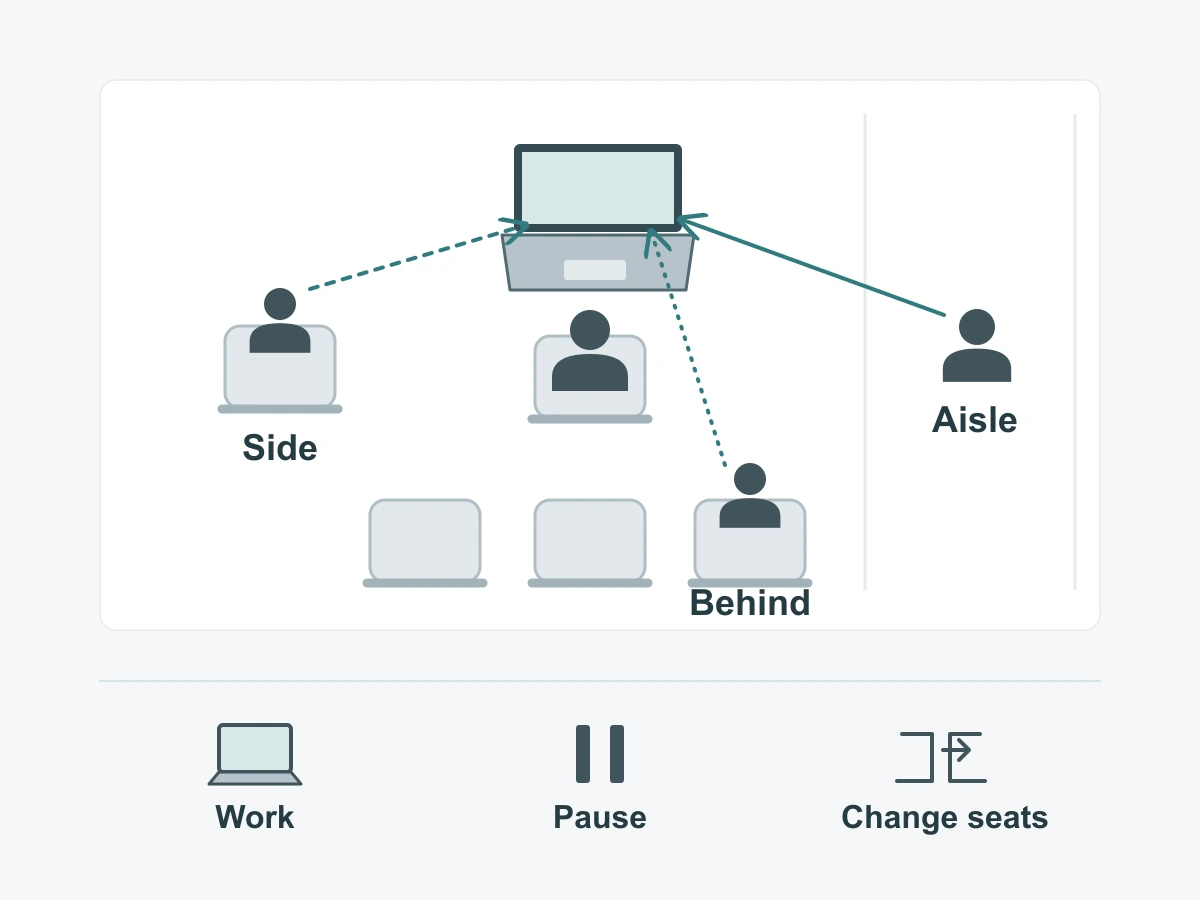
Match the task to the location
Pause highly sensitive work when an acceptable setting is unavailable
Treat pausing as a normal working option. If the next action would reveal material unsuitable for the surroundings, save your progress and switch to non-sensitive planning, reading or another permitted task. If even that would expose private details, lock the device and wait for a better setting.
Consider the transitions inside an application. A harmless-looking task may require opening an account, searching a client name or moving to a document list. Choose based on the information the whole action will reveal, not just the first page visible on screen.
The following three action cards can be used as a compact travel brief. They describe decisions, not a guarantee about any airport, customer site or other public setting.
| Waiting-area solo work | Side-by-side client review | Changing seats or packing away |
|---|---|---|
| Check neighboring seats, the row behind your shoulders and people standing in the aisle before opening work. | Prepare material suitable for this audience before turning the screen toward the client. | Save progress and lock the screen before standing up or moving the laptop. |
| Keep unrelated windows closed and select a task with an acceptable level of exposure for that setting. | Check notifications, browser tabs, document names and the next item you plan to open. | Follow the supplied removal and storage routine; keep a removed filter in its designated protection, separate from the closing area. |
| Recheck sightlines as people move. Pause sensitive work or change position when the arrangement no longer suits the task. | If the supplied filter is removable and shared viewing needs it, switch using its instructions. Keep sensitive material closed while the view is shared. | At the next seat, check side and rear sightlines again before unlocking and reopening sensitive content. |
Use non-sensitive material for planned client sharing
Prepare the client-facing document before travel when possible. Use a version containing only the material appropriate for that audience, rather than searching through private folders while the client watches. Check the next slide or page as well as the opening view.
A shared review may expose more than the document body. Browser tabs, filenames, recent-item lists and notification previews can reveal information unrelated to the discussion. Close or move away from those surfaces before sharing the physical display. A change in audience calls for a fresh content check, even when you remain at the same desk.
If a new question requires private internal material, pause the shared review and arrange an appropriate way to follow up. Do not remove the filter and search confidential records just to keep the conversation moving.
Plan transitions between solo and shared work
Use the approved removable-filter routine by reference
A removable setup can help a traveler alternate between individual work and showing a colleague a screen. Use the routine supplied for the actual product, not a removal method borrowed from another attachment type.
The universal laptop magnetic privacy screen page includes its existing removal, repositioning and protective-storage guidance. The MacBook magnetic privacy screen is a separate device route; its selection does not establish compatibility with every MacBook or permission to close the laptop with it installed.
Before issuing equipment, make sure the traveler knows which parts are intended to come off and where the removed filter belongs. During travel, the important decision is when to switch, not how to improvise an unfamiliar attachment in a crowded seat. If it does not release as instructed, leave the uncertain action and use the normal support route.
Check the screen and notification content before showing it to a colleague
Make the content suitable before changing the viewing arrangement. Finish private work, select the shared material and check active notifications. Only then turn the display or remove a filter when the supplied configuration permits it.
Think about the people beyond the colleague as well. Opening the view for one person can also expose it to someone standing behind them. Non-sensitive presentation material remains the better choice when the surrounding audience cannot be controlled.
After the discussion, return to the normal working position and filter arrangement before reopening private content. Recheck the surroundings if the conversation has moved you to a different chair. The switch back is a new seat-and-task decision, not simply replacing a sheet on the screen.
Include a short travel brief with the equipment
Explain physical privacy limits and the normal support route
Keep the equipment brief focused on actions: inspect the seat, choose the task, prepare shared content and lock before moving. State plainly that the filter supports local visual privacy but does not authorize work in a setting that the organization considers unsuitable.
Give travelers a recognizable product reference and an ordinary IT or equipment-support contact. A useful support message describes the device, the attachment and the action that was difficult. Use an open-device photo without sensitive screen content if a photo would help explain the issue.
For team purchases, describe those routines through bulk privacy filter purchasing: how often staff move between seats, whether they show clients the physical screen, which devices they use and how many configurations are needed. Do not substitute a general “travel-ready” label for those practical requirements.
Link existing installation and closure instructions rather than repeat them
Use the laptop privacy-screen attachment comparison when choosing the installation route, then keep the supplied product instructions with the equipment. For MacBook pack-away questions, refer to the existing removal-first closure checklist rather than assuming a thin or magnetic filter may remain inside the closed laptop. If the travel kit also includes a portable monitor, see the portable-display stand, cable and sleeve review.
Save, lock, follow the appropriate pack-away routine and reassess at the next seat. That short sequence is easier to use during travel than a second installation manual, and it keeps attention on the change in location and task.
Request a configuration review with the device models, travel and collaboration routine, quantity and any unresolved attachment question. Paste the summary into the form and send supporting photos or device lists separately through the site’s provided WhatsApp, Telegram or WeChat options.