
Workplace deployment
Deploy Privacy Filters to Remote Employees with a Device-Matched Starter Kit

Prepare a device-matched filter kit for remote employees. Define first-use checks and a clear support route for missing or mismatched items.
Give each remote employee a filter matched to their actual device, a configuration-specific contents list, the relevant instructions and one clear support contact. Then ask them to confirm the first use—not just receipt of the parcel. If the device is different or a required item is missing, route that issue before asking them to install anything.
This starter-kit approach is a workflow for your IT team or managed service provider (MSP), not a standard ScreenWord bundle or a managed installation service. It connects an agreed purchasing configuration to the laptop on the employee’s desk.
Confirm the employee-device match
Use the approved configuration reference
Start with the configuration selected for the employee’s current device: exact model, filter reference, attachment method and agreed function version. Keep its revision with the dispatch record. If an order already uses group IDs, carry the same reference into the employee’s pack and support record.
Before opening installation materials, the employee should compare the device they actually use with that reference. A recently replaced laptop, a temporary loan device or a changed case can make an old assignment unsuitable. A matching brand or diagonal label is not enough to resolve that difference.
Use the mixed-size laptop order guide for the upstream configuration and packing records. Here, the practical question is narrower: does this received pack belong with this employee’s current setup?
Do not include personal details in public examples
An internal device or deployment reference can connect the pack to the assignment without displaying the employee’s name or home address in training examples. Keep the employee-to-device mapping in your organization’s normal asset system.
When demonstrating the process, use fictional identifiers and neutral screen content. Ask employees to send support information through the organization’s designated channel, not to post their delivery labels, asset records or work screens publicly.
Prepare the kit contents
Filter, confirmed accessories, care and installation references
Build the contents list from the confirmed configuration and packing agreement. List the filter by its product reference, then add only the separate items confirmed for that pack. Distinguish a part built into the filter from a loose item the employee should find in the packaging.
For the deployment pack, organize four things:
- The selected filter: its reference should connect to the assigned device and configuration revision.
- Confirmed separate accessories, if any: identify each by the agreed name and quantity. Do not use a generic accessory photo as the packing list.
- The applicable installation and care references: provide the supplied version or an accessible reference to it. Have IT check access before dispatch, especially when employees need a work login to open instructions.
- Your team’s first-use card and support route: identify where the employee should report completion or ask for help. These are deployment materials your organization prepares.
Do not assume a cleaning cloth, storage folder, spare attachment or other accessory is standard equipment. If your organization wants one included, agree it explicitly and add it to that configuration’s list. If an instruction reference is missing, obtain it rather than asking employees to choose a tutorial for a similar-looking filter.
The universal laptop magnetic privacy screen is a removable option for work that alternates private and shared viewing. For an approved removable configuration, explain the removal and storage routine using its own instructions. Treat any storage item as a separately confirmed part of the deployment plan.
For a wider rollout, carry these pack requirements into the bulk privacy filter request, with configuration references and quantities kept together.
Create the first-use confirmation
Employee checks identity and instruction version
Ask the employee to unpack on a clear work surface, retain the packaging while checking the contents, and compare the pack reference with the assigned device. Next, open the instructions and check that they cover the received filter and attachment. Here, “identity” means the device and product identity; this step does not call for personal identity documents.
Once those checks are complete, the employee can follow the applicable instructions and try a short normal task with non-sensitive content. Include the handling routine they will actually use, such as removing a removable filter for shared viewing. Do not ask them to improvise attachment steps or force an item into place.
Use this first-use confirmation card for each deployment. Enter actual findings in the last column; the card contains no preset successful results.
| Check | What the employee checks | Result or reference to enter |
|---|---|---|
| Current device | Actual model matches the assigned configuration; note a replacement or loan device | Device/configuration reference; match or difference |
| Received filter | Pack and filter identification correspond to the assigned reference | Received reference; match or difference |
| Pack contents | Each required item on this configuration’s list is present | Complete, or exact missing item and quantity |
| Instructions | Product, attachment and instruction revision agree; instructions can be opened | Instruction reference/version, or question |
| First installation | Applicable steps can be followed without an unresolved fit or instruction issue | Completed, or the step where help is needed |
| First work task | Normal reading/input task and relevant handling routine have been tried | Task and actual observation |
| Support follow-up | Any open issue has a named support route and record | Issue reference, or no open issue |
| Employee confirmation | Employee records the outcome after the checks above | Date; ready for intended use or help needed |
Keep the card with the deployment record. Receipt tracking and first-use status should remain separate so a delivered parcel does not hide an employee who is still waiting for help.
Capture only necessary support photos
If a photo would help, ask for the specific view: the product reference, unpacked contents or the edge where installation becomes unclear. Start with the relevant reference and a short description; not every support request needs photos.
Before sending a picture, remove delivery labels and personal items from view, and close confidential documents on the screen. Include a wider device view only when needed to understand the setup. Use your organization’s support channel and share supplier-facing images only after checking what they reveal.
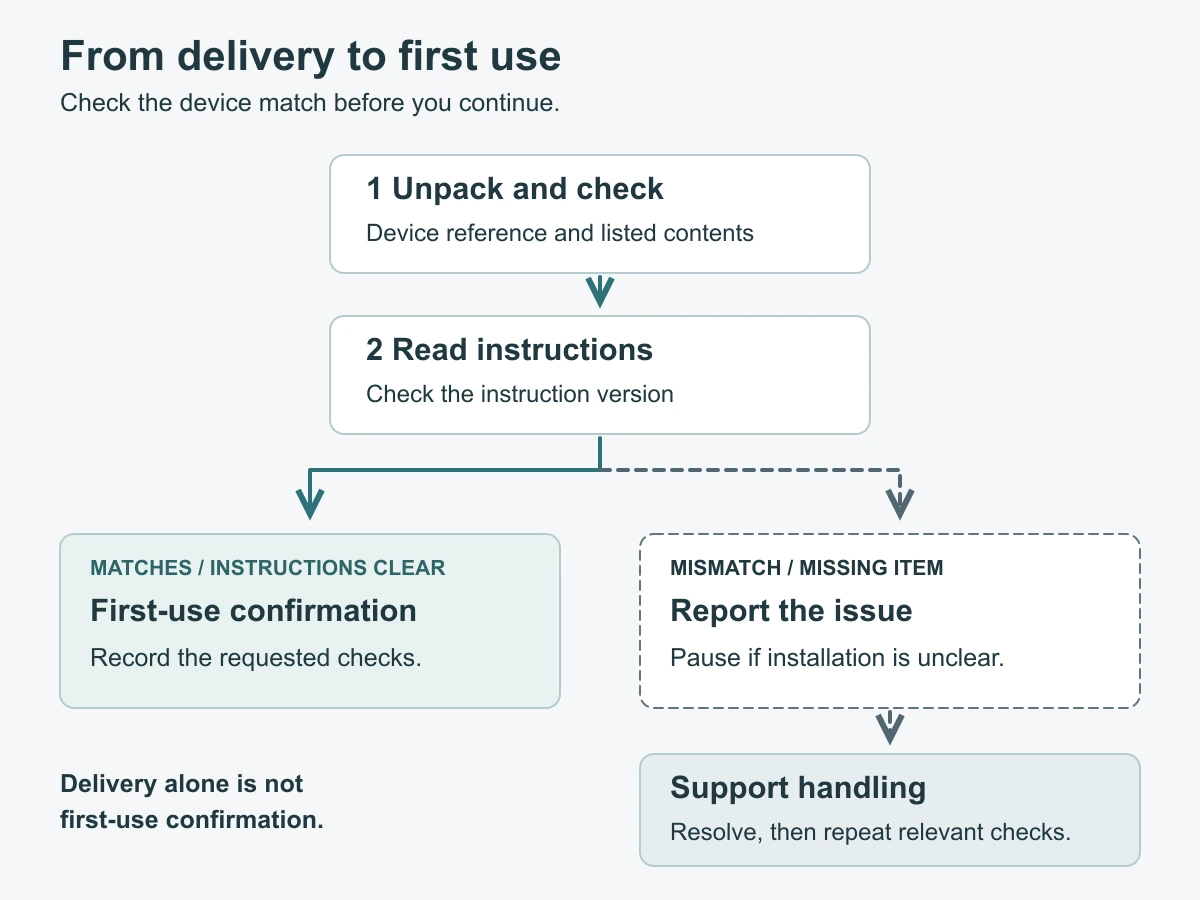
Provide an exception route
Wrong device, missing part or unclear installation
Give employees one first contact—normally their IT team or MSP—and let that team separate assignment problems from packing questions. The following two routes make the next action explicit.
| Issue | Employee sends to IT/MSP | IT/MSP next action | Before first-use confirmation |
|---|---|---|---|
| Wrong device or mismatched configuration | Actual device model, assigned configuration reference and received pack reference; describe what differs | Check the current asset assignment and dispatch record. If the supplied item differs from the agreed order, raise that exact difference with the supplier; if the device changed, arrange a suitable configuration review | Correct the assignment or resolve the supplied configuration, then repeat the device, contents and first-use checks |
| Missing required part | Pack reference, item name and quantity from the confirmed contents list, plus a contents photo if useful | Compare the pack with the agreed list. Clarify whether the item is separate or integrated; raise an actual shortage with the party responsible for packing | Resolve the missing requirement, then complete the affected installation and task checks |
If the device and contents match but installation is unclear, record the instruction version and the step where the employee stopped. IT or the MSP can clarify the applicable instructions or contact ScreenWord about the configuration. Do not turn an instruction question into a request to try unlisted parts or a different attachment method.
Keep one issue reference through the exchange. Tell the employee who owns the next action through your existing support process; supplier response times, replacements and return arrangements follow the agreement for that order.
Resolve before assuming deployment completion
Leave first use open while the device match, a required item, an instruction question or an unsuccessful work task remains unresolved. Sending an answer or dispatching another item is not the same as the employee completing the affected check.
After a correction, update the configuration or contents reference if it changed. Ask the employee to repeat the relevant steps and record the actual outcome. Mark the deployment ready for intended use only when the required items and instructions are in place, the first-use task is complete and no related issue remains open.
Request a configuration review with the device and intended use, configuration or drawing reference, quantity and unresolved question. Paste a concise summary into the form. Send supporting files separately through the site’s provided WhatsApp, Telegram or WeChat options, without including employee home addresses or a full personnel list.