
Industrial integration
POS and Kiosk Screen Privacy: Map the Customer, Operator and Queue

Map customer, operator and queue positions before selecting a POS or kiosk privacy filter. Keep essential screen use visible in the project brief.
Choose a POS or kiosk privacy filter around the people who must use the screen, not just the people you want to keep from reading it. First identify what the operator and customer need to see or touch, then map the waiting queue. If restricting a queue view also hides an essential customer instruction, resolve that conflict before selecting a filter.
A useful site review separates each screen, each role and each task. The same person may move from waiting to using the terminal, while one display may alternate between public instructions and a private interaction. Record those changes instead of assigning the whole installation a single “private” label.
Assign each screen a purpose
Customer confirmation, operator work or public instructions
Give each physical screen a reference on the layout. Identify whether it supports operator work, customer confirmation, public instructions or several purposes at different stages. Two displays at the same counter can have different viewing needs even when they look alike.
Name the content that must remain readable. “Customer use” is too broad; identify the instruction, choice or confirmation the customer needs for the next action. For operator work, identify which controls and status information staff need from their normal position. For a public instruction display, specify what people approaching or waiting should be able to read.
Next name the information that should be less readable from a particular nearby position. Use a content category rather than real account details or transaction records. Keep this privacy target separate from the screen’s required reading tasks. A public instruction display may need a wide shared view rather than a filter, while a separate operator display may have a more specific privacy objective.
ScreenWord’s POS and retail display project page provides the application route. Before moving into product configuration, establish which display actually needs a change and which users it must continue to serve.
Draw the queue and user positions
Seated and standing use where the installation requires it
Make a simple plan showing the counter or kiosk, each screen’s facing direction, the operator’s working area, the customer’s interaction position and the queue. Add a side view when screen height, tilt or seated use matters. Mark the installation’s actual positions rather than copying a generic counter diagram.
Where the installation supports both seated and standing use, record both. Include the normal places from which a user reads and touches the interface, not only where their feet or chair are located. A person reaching for a control may view the screen from a different position than when reading an instruction.
Use position references on the drawing and in the matrix below so another reviewer can repeat the walkthrough. Add actual distances or height information if available; leave unknown values open. A rough layout with clearly identified missing inputs is more useful than invented measurements.
Avoid a single idealized viewpoint
Trace the interaction from approach to completion. Note where customers pause, where the queue bends, and where an operator moves to help. If the screen swivels between staff and customers, show its relevant positions separately. An empty-counter view does not describe a busy queue or an assisted task.
Pay particular attention to positions that overlap. Someone waiting directly behind the user may share a similar line of sight. A filter selected to restrict side views should not be treated as a way to distinguish those people by role. In that situation, review queue placement, screen orientation or the information displayed during the task, rather than assuming stronger side restriction resolves the problem.
Keep proposed changes separate from the current layout. Moving a queue or rotating a screen may help one view while creating another conflict, such as making a public instruction harder to see or forcing the customer away from the normal interaction position.
Check privacy against usability
Who must read and touch each screen area
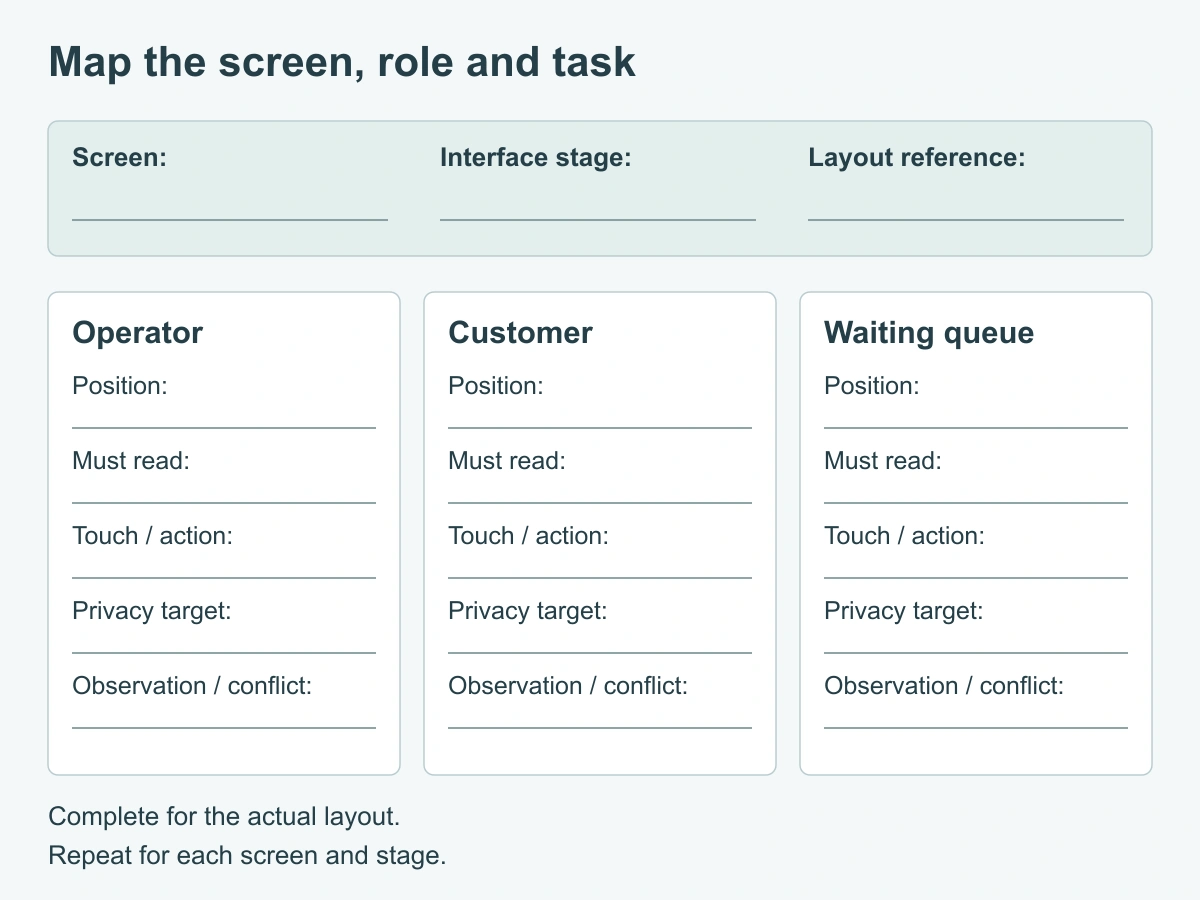
Use one set of rows for each screen and interface stage. Fill in the actual task and position before discussing a candidate filter. For a role that should see no private content, write “none” in the required-content field and state the separate privacy target. Do not use an empty cell to mean either “no need” or “already checked.”
This is a blank planning matrix, not a completed site assessment. Replace the screen and stage fields, repeat the rows for other displays or postures, and fill findings only after a walkthrough or trial. Reading and touching are separate checks: seeing a control does not establish that it can be operated through the proposed configuration.
| Screen / interface stage | Role and position reference | Content that must remain readable | Touch or action required | Privacy target from this position | Observation / conflict / next change |
|---|---|---|---|---|---|
| Screen: ___ / Stage: ___ | Operator / Position: ___ | ||||
| Screen: ___ / Stage: ___ | Customer / Position: ___ | ||||
| Screen: ___ / Stage: ___ | Waiting queue / Position: ___ |
For each completed set, compare the required-content column with the privacy target. If the customer and queue need different access but occupy overlapping views, mark the conflict explicitly. If all three roles need a public instruction, keep that shared-reading requirement visible in the plan. Do not assume the entire display needs the same treatment at every stage.
Walk through the task using non-sensitive demonstration content. First record how people use the current setup. If a candidate filter is available, repeat the same task at the marked positions with that configuration. Record what can be read, whether the intended action can be completed, and any change in posture, screen tilt or assistance needed. Keep actual findings separate from the desired result.
The industrial touch-screen custom privacy filter route is relevant when a display needs a project-specific configuration. Touch and viewing suitability belong to the exact setup being reviewed; a generic product image does not settle the matrix.
Record layout changes before selecting a filter
Resolve the conflict at the level that causes it. Consider whether the screen can be oriented differently, whether public guidance can be separated from private interaction, or whether the queue can be positioned differently without disrupting the work. Interface or layout changes should be reviewed by the team responsible for that installation, not assumed to be included in a filter purchase.
After a change, update the layout reference and repeat the affected rows. A screen turned toward the customer may also turn toward the next person in line. Moving an instruction to another display changes which screen needs a shared view. Record the new arrangement before comparing filter options so the supplier is not working from an outdated sketch.
The outcome may be no filter for a public display, a filter request for a particular screen, or a layout revision followed by another review. Select the path that preserves essential use while addressing the defined viewing concern. Keep permissions and any applicable compliance review with the buyer’s responsible specialists.
Prepare the site-specific review
Bring the layout, interface tasks and open visibility questions together in one concise summary. Identify the screen and stage concerned, the operator/customer/queue positions, the required readable content and the unresolved conflict. Include the current layout revision and any proposed alternative so the two are not mistaken for the same arrangement.
Use the custom privacy filter buyer brief for the separate geometry, touch-stack, attachment and quotation inputs. Carry those references into the request rather than repeating the RFQ here. For the visibility question, a labeled sketch and the completed task rows explain more than a request for a “darker screen.” Share only authorized, non-sensitive reference material.
For a custom privacy filter project review, identify the proposed configuration or drawing reference if one exists. If there is no candidate yet, state the intended viewing objective and the question to resolve. Keep unobserved outcomes blank; they can be completed on the actual layout and device rather than guessed during procurement.
Request a configuration review with the device or application, configuration or drawing reference, quantity, layout/task summary and open visibility question. Paste the summary into the form. Send supporting drawings or the matrix separately through the WhatsApp, Telegram or WeChat options provided on the site; the form does not transmit attachments.